What’s new in Slidewise 3.3?
We're excited to announce Slidewise 3.3. Delivering major upgrades to File Review, more reliable image replacement, and essential new Image Audit checks to help you see and fix even more unwanted content in your Decks.
Get your 30-day free trial of Slidewise if you haven't already.
IN THIS UPDATE:
New File Review and Image Audit checks
File Review:
Hidden list styles
Sections, plus empty section alerts
Animations
Transitions
Image Audit:
Flipped images
Rotated images
A new way to track changes
File Review now includes a “Copy to Clipboard” feature that copies a list of affected shapes to the clipboard. Paste them into another application to use as a reference list after you change them all with Slidewise.
Better quality output with “Export Slides As” feature:
PPTX: Properties are now included and empty sections are not
PDF: Properties are included
JPEG/PNG: Correct DPI metadata added
Replace image is now more reliable
Fixed issues when replacing images that were a different aspect ratio and also cropped.
Better visibility of distorted images
Warning flag added to Inspector for distorted images
Fix distorted images with one click
New File Review and Image Audit checks
Manually searching presentations for specific content is tedious and error-prone. Slidewise makes this job easy by instantly displaying important content, settings and metadata and pinpointing their location.
With version 3.3, Slidewise identifies even more content, saving you even more time on your quality assurance checks.
File Review: Hidden list styles
Hidden list styles have been on our radar for a while after we wrote about ways unwanted fonts get into your presentations.
When you duplicate placeholders, a snapshot of the 9 levels of list styling from your Master is embedded in the newly created Text box. This can cause problems later if those styles include visual elements or fonts, because they cannot be directly edited in PowerPoint.
Now Slidewise identifies any text boxes that have hidden list styles and also lets you remove them if needed. This can help eliminate problem fonts without having to resort to replacing them with other fonts, or replacing the text boxes completely.
File Review displays a full list and lets you jump to affected text boxes for a closer look.
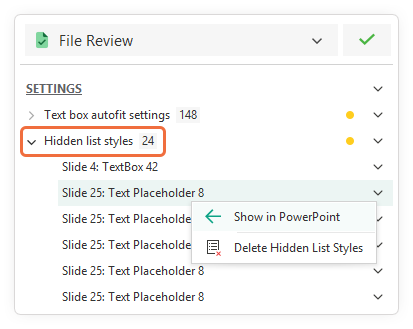
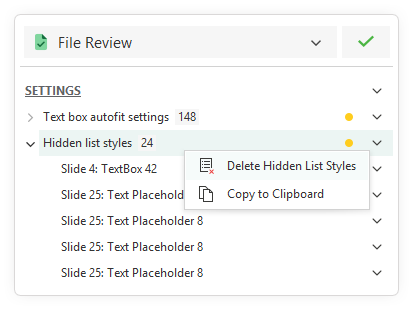
Right-click to Delete Hidden List Styles from individual shapes, or for all text boxes at once.
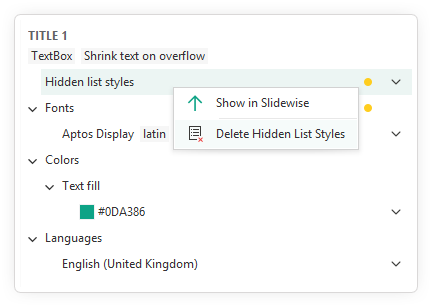
Hidden list styles are also now indicated in the Inspector when you click on an affected text box.
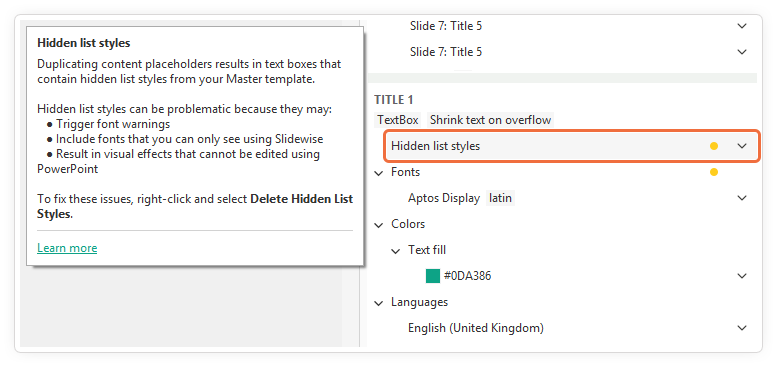
The Inspector gives you granular control for editing individual shapes, a step up from making global changes. For example, you can use it in this scenario to delete hidden list styles from specific text boxes. Discover more about what the Inspector can do.
File Review: Sections
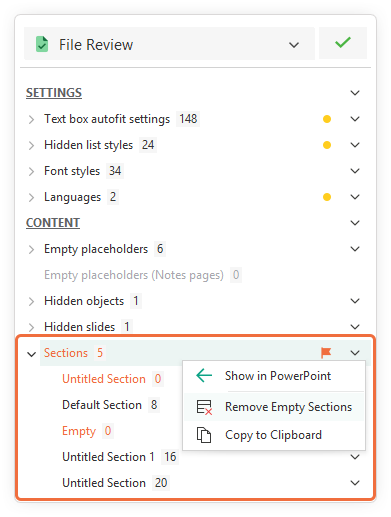
Empty sections can easily accumulate in presentations, particularly larger ones, as slides are deleted and rearranged. Because the PowerPoint interface doesn't clearly highlight these empty sections, they can easily be inadvertently included when sharing the final presentation.
Slidewise now warns you about any empty sections in File Review. For a quick clean-up, you can right-click to remove all empty sections at once.
File Review: Animations
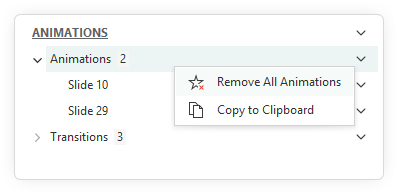
Under the new ANIMATIONS heading in File Review, you can now see a list of all slides with animations.
Animations can sometimes detract from a presentation, or if you are not expecting them, can surprise you (not in a good way). If you are reworking a presentation, it can also sometimes be handy to quickly take all of the extraneous content out to leave you with a simpler presentation to work with. Whether animations are distracting your audience or adding extraneous content to a presentation you are cleaning up, Slidewise simplifies the task. You can now easily identify every animation in a deck, jump to its location, and/or remove it quickly.
File Review: Transitions
Also under the ANIMATIONS heading in File Review, you can find a list of all slides that include transitions, along with the specific type of transition used for each slide.
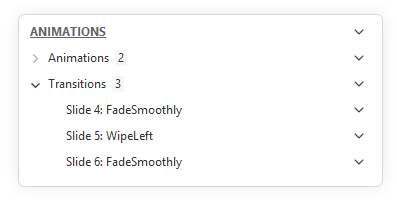
You have a couple of options for managing slide transitions. You can either right-click on individual slides and jump directly to them to edit their transitions using PowerPoint. Alternatively, you can use the right-click menu on the main Transitions heading to remove all transitions at once.
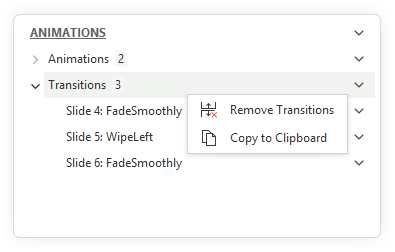
If you need a record of the affected slides, you can use the "Copy to Clipboard" function and paste the list into another application for easy reference
Help us decide: We've moved Transitions to File Review and are considering removing the Slide Selection tool to simplify the user interface and remove duplication. Please test the new File Review location now. Would removing Slide Selection—and its capability to simultaneously change transitions for a collection of slides—cause you issues?
Image Audit
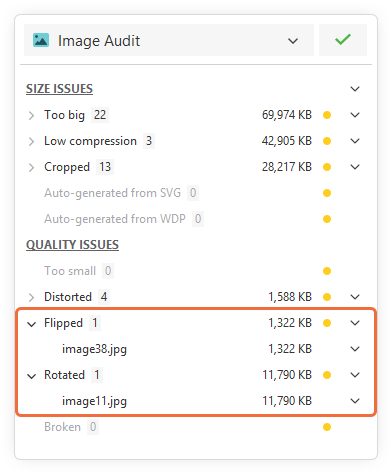
When images are flipped or rotated in PowerPoint, it’s not always possible to tell visually. When you flip the image in PPT, it flips the image shape, not just the image. This means that if you later replace an image that is flipped, the replacement image will also come in flipped. This can be confusing for users, but it is particularly problematic when working with PowerPoint templates where they are set up with placeholders that are intended to be replaced every time the template is used.
Now Slidewise will alert you to any images that are flipped or rotated, and give you a list that you can check through and fix as needed.
A new way to track changes
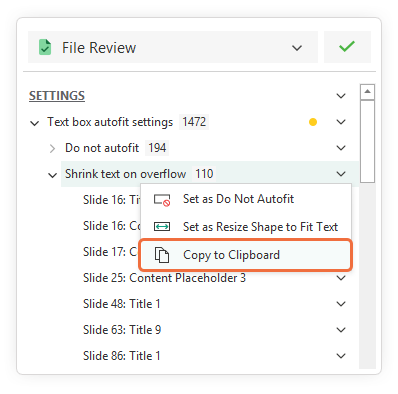
Some File Review actions, such as modifying text boxes from "Shrink text on overflow" to "Do not autofit," can alter the layout of shapes on slides. Previously, Slidewise did not provide a way to easily identify which shapes were impacted by a change after it was made.
Slidewise now offers a solution: you can copy the list of relevant shapes to your clipboard before applying any modifications. This list can then be pasted into another application, serving as a checklist. This new feature allows you to easily reference and verify the affected shapes once the change has been applied.
We would love to hear from you about whether this helps, or if you still encounter difficulties when making changes with Slidewise.
Better quality output with “Export Slides As” feature
With Slidewise, exporting selected slides to various formats is easy. Simply choose the slides you wish to export, right-click, and then select the Slidewise > Export Slides As option. Detailed instructions for this and all available options are available here.
This update fixes some minor issues. In the next major update, we plan to introduce significant new capabilities, such as the ability to remove specific content (like animations and transitions) during the export process.
Export slides as PPTX: Remove empty sections and export properties
Previously, if you exported a presentation with multiple sections, all of the sections would also be exported, but any that didn’t include slides would then be empty sections in the exported file that you then needed to delete. Now it only exports the sections connected to the slides you’ve chosen to export.
It also now exports the presentation properties, which were previously being missed.
Export slides as PDF: Now includes properties
Exporting to PDF now also exports the presentation properties to the new PDF.
Export slides as JPEG/PNG: correct DPI metadata
When exporting to image formats you have the full range of resolutions options, making it easy to create high-resolution images from your powerPoint files.
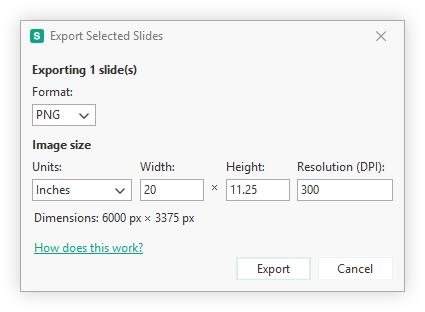
Previously, exporting images from PowerPoint resulted in images that, although they were the correct dimensions, the DPI metadata saved in the image was incorrect. We’ve changed the way we export images now to ensure that they are exported with the correct metadata instead.
Replace image is now more reliable
The replace image feature in Slidewise gives you a powerful way to replace multiple images in one go. It also crucially retained the effects and treatments on the original image with the replacement, giving you a much quicker way to, for example, move from comp images to finals without having to rework your slides.
Replace cropped images with different aspect ratios
You aren’t always replacing an image with one that is the same aspect ratio, and in these cases, Slidewise would occasionally hit an issue.
If one or more images you were replacing were cropped in PowerPoint AND they were a different aspect ratio AND you selected to replace and adjust the shapes in PowerPoint, previously Slidewise would have replaced the image, but it would have appeared distorted. This is because it became confused by the cropping.
When this occurs, you will see a task dialog like this:
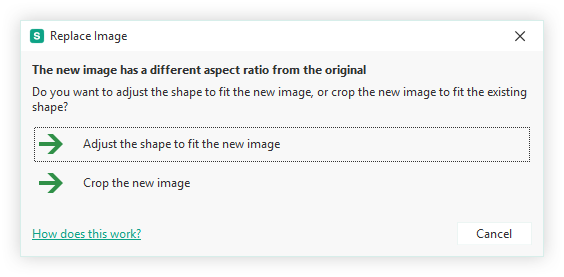
Slidewise's 'Replace image' (v3.3) now prevents distortion when replacing cropped images with differently-shaped images.
Choosing “Adjust the shape to fit the new image” for a cropped image:
Removes original PowerPoint crop settings.
Replaces the image.
Sizes the new image as close as possible to the original cropped area's dimensions.
We’ve also made the task dialog clearer and de-prioritised the crop option - it used to look like this:
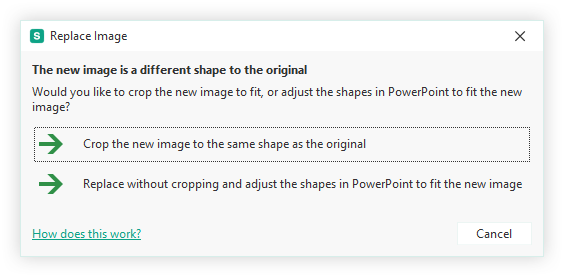
Slidewise cropping is a permanent, or "destructive," action. It does this to maintain the original aspect ratio of the uncropped image that it replaces within PowerPoint.
Caution: Use this feature carefully and avoid excessive cropping, as the image may also be cropped within PowerPoint, resulting in a double crop.
If you are unsure, choose "Adjust the shape to fit the new image."
Better visibility of distorted images
New warning in the Inspector
If you are not yet fully utilising the Inspector, I urge you to have a look through this support article on all the ways it can help you. It gives you real-time insights into whichever object you select in PowerPoint. It both displays all of the detailed information that Slidewise has on the selected shape, and it also gives you access to the features, saving you from finding the individual shape in the main Slidewise index.
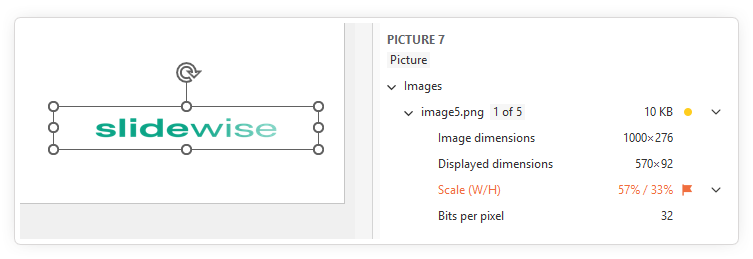
It wasn’t clear enough in earlier versions of Slidewise when an image was distorted. We just listed the Scale Height and Scale Width as different values. But it didn’t really do well enough to alert you to this potential issue.
Now however, Slidewise displays a warning in the Inspector, along with the percentage scale height/width.
The inspector adds a “(W/H)” and a warning to images that are distorted by more than 10%, so you can see them at a glance.
Fix distorted images with one click
Fixing distorted images can be a little frustrating; standard reset options also remove effects/sizing, and manual scaling using the format shape pane is fiddly. Our new solution simplifies this: right-click a distorted shape (see example) in the Inspector and select "Fix Distorted Image."
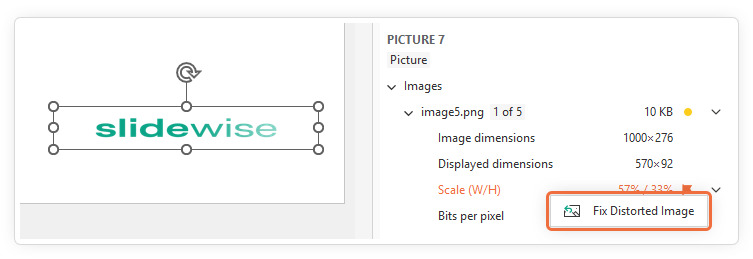
The ‘fix’ automatically corrects the aspect ratio by matching the shorter dimension’s scaling to the longer one, instantly fixing distortion while keeping the shape's approximate size. Watch it in action below:
Where next?
Thanks for your ongoing support. We hope you find these new updates valuable.
We're planning a more significant update for Slidewise later this year. We have many ideas for new features and improvements, but as always, we encourage you to share any suggestions you have!
Additionally, we're developing an early version of a similar tool for Word, currently named Wordwise. If you'd like to stay informed about its progress, please let us know that you’re interested.