What’s new in NXPowerLite Desktop Mac 11?
NXPowerLite Desktop Mac 11 is now here with a brand-new file analysis tool that gives you detailed insights into your file sizes. We’ve also made sure that it delivers even better results! Files will shrink more effectively, and the engine has been fine-tuned to improve the quality of your output files too.
Start your NXPowerLite free trial today
New in this version:
View details
Compression engine upgrade
Custom resolutions
Finder menu updates
Improved user interface
Permissions and network fixes
View the full release history.
Pinpoint compression issues with View Details
Before NXPowerLite 11, diagnosing compression issues—for PDFs, PowerPoint, Word, and Excel—was a challenge. NXPowerLite 11 now solves this with its built-in View details feature, giving you a detailed file size breakdown for these formats.
You can use this new feature from Finder, or by using the View details button in the application.
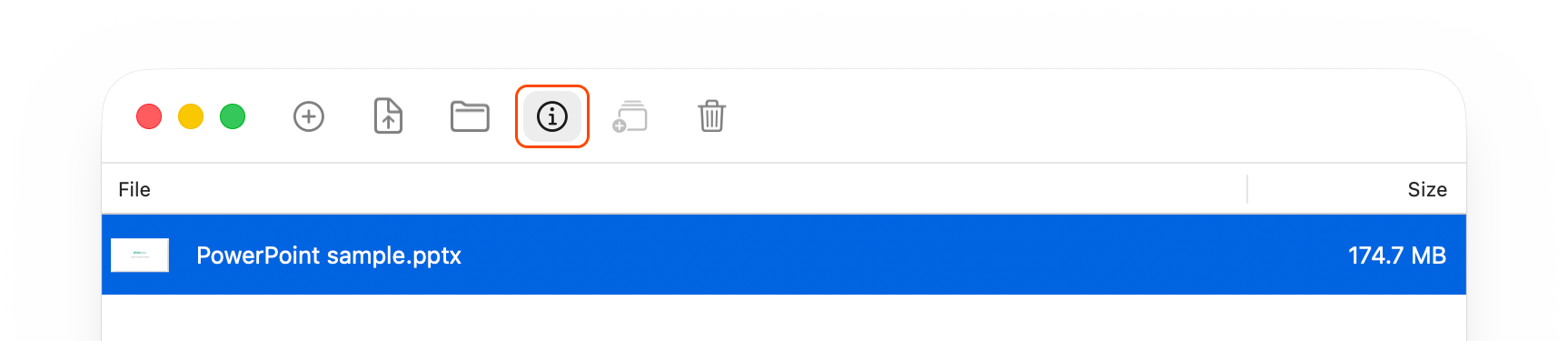
Clicking it will bring up a detailed breakdown of the content sizes for the selected file, as shown below:
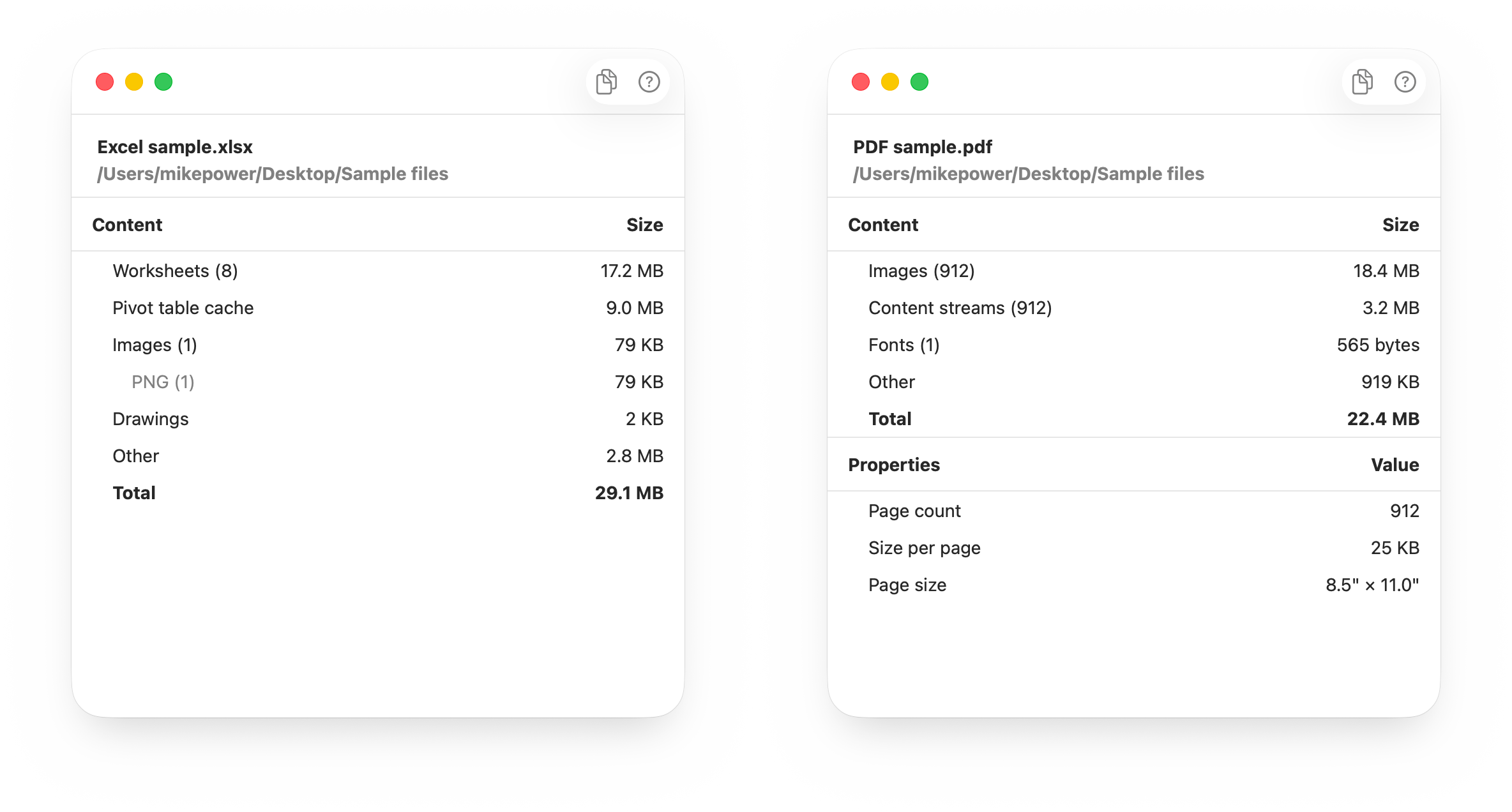
This new feature, combined with our latest guides for manually reducing 'stubborn' content in each file format, give you all the information and instructions you should need. The guides can be accessed by clicking the question mark icon (?) at the top of the View Details window.
Achieving your target file size should hopefully now be possible in almost every case.
Huge compression upgrade!
This major upgrade brings substantial improvements in compression, broader file compatibility, and a host of other enhancements. These changes are all focused on delivering the highest quality compressed files while achieving the smallest possible size.
Key changes in version 11:
Compress pictures in cells (Excel)
Compress grouped images (Word)
Compress JPEG2000 images (PDF)
Fix compression of cropped + grouped shape fills (PowerPoint)
64-bit compression (All files)
Improved Compression for PNGs with Color Profiles (Office files)
Expanded coverage so more files get compressed (Office files & PNG)
Extensive bug fixes to improve coverage and quality (PDF, Office files)
Because many of these engine changes can result in substantial additional compression over older versions, NXPowerLite 11 will retry files that have previously been compressed with an earlier version to see if it can make them even smaller. It will only compress content that it couldn’t compress previously.
Full details of all of the engine updates are covered in detail on our blog in our version 11 engine update.
Custom resolutions
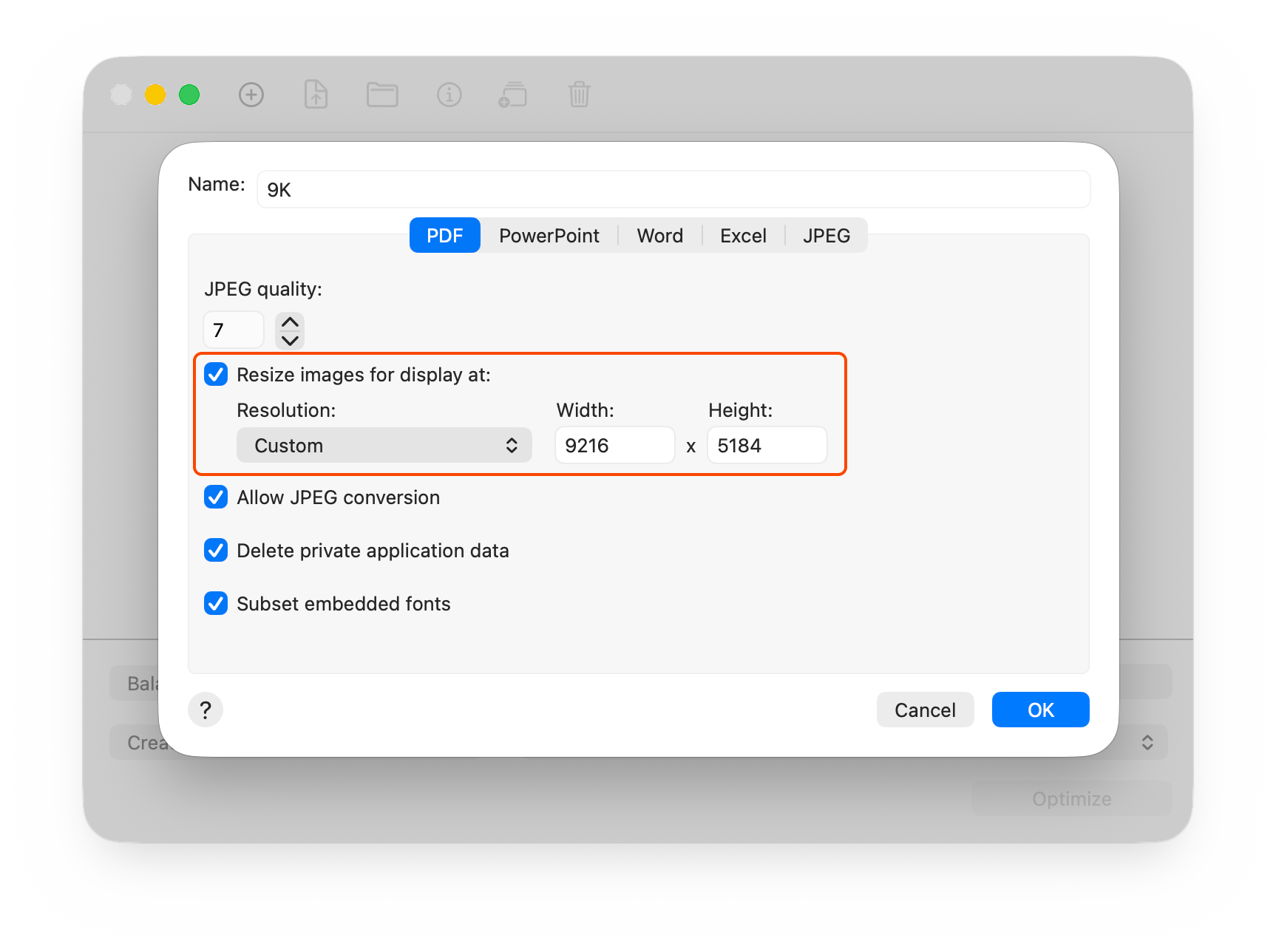
Event professionals and users working with non-standard screen sizes often need to target compression at custom resolutions not included in our default list. We're pleased to announce that NXPowerLite Desktop 11 now supports custom resolutions! Our thanks to Troy Chollar of TLC Creative for suggesting this feature.
How to set a Custom resolution:
Go to Edit > Manage profiles
Create a new profile or duplicate an existing one to use as a base
In the resolution dropdown, select Custom
Enter your desired width and height in pixels
Quick Tip: Once you've set a Custom resolution for one file type, subsequent file types will automatically populate the same details if you also select Custom for their resolution dropdown.
Finder menu updates
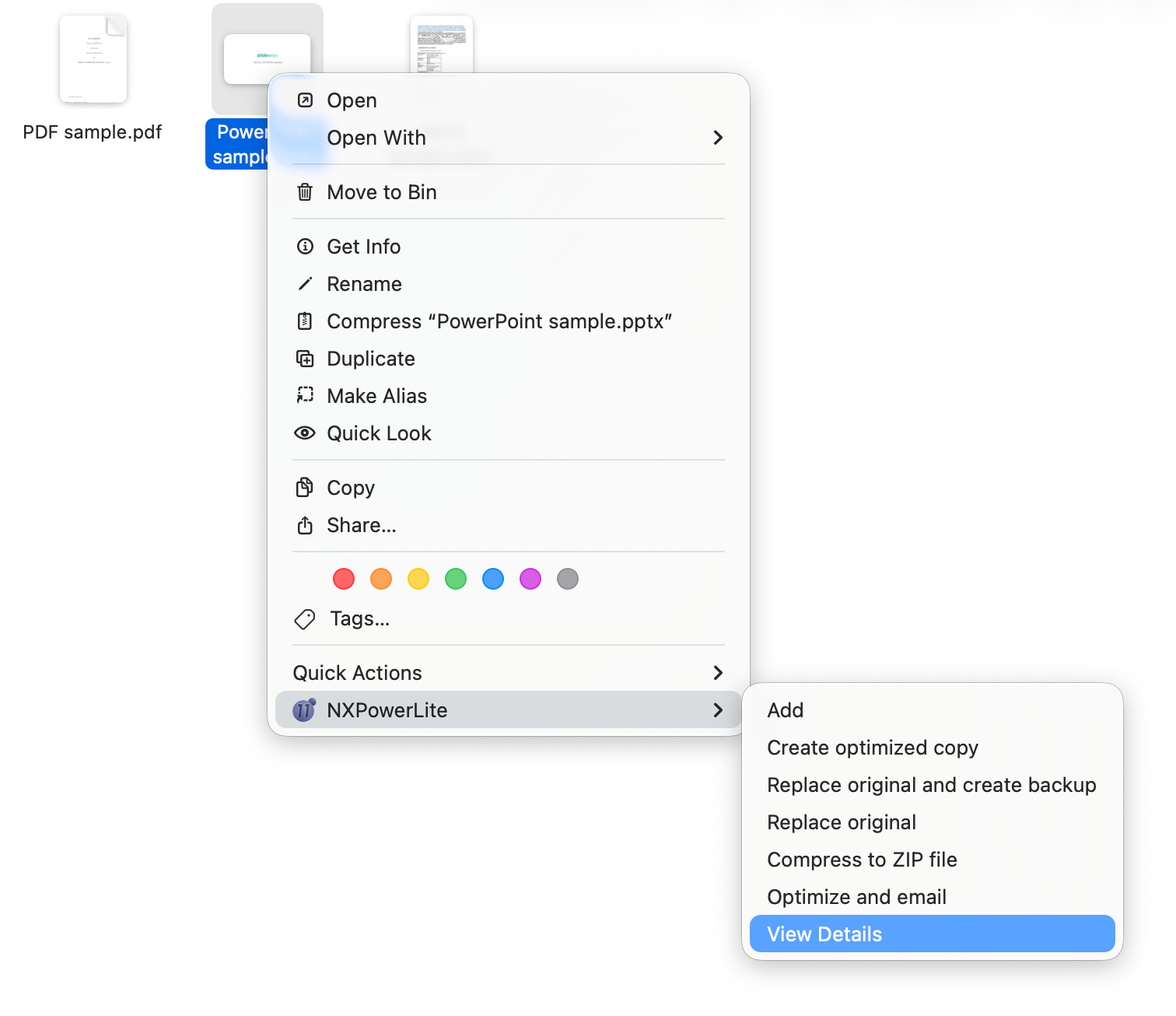
With NXPowerLite Desktop 11 you can right-click on a single PDF, PPTX, DOCX, or XLSX file and you will see the new View Details feature at the bottom of the menu. This lets you quickly see a file size breakdown without having to fire up the main NXPowerLite app.
User interface refinements
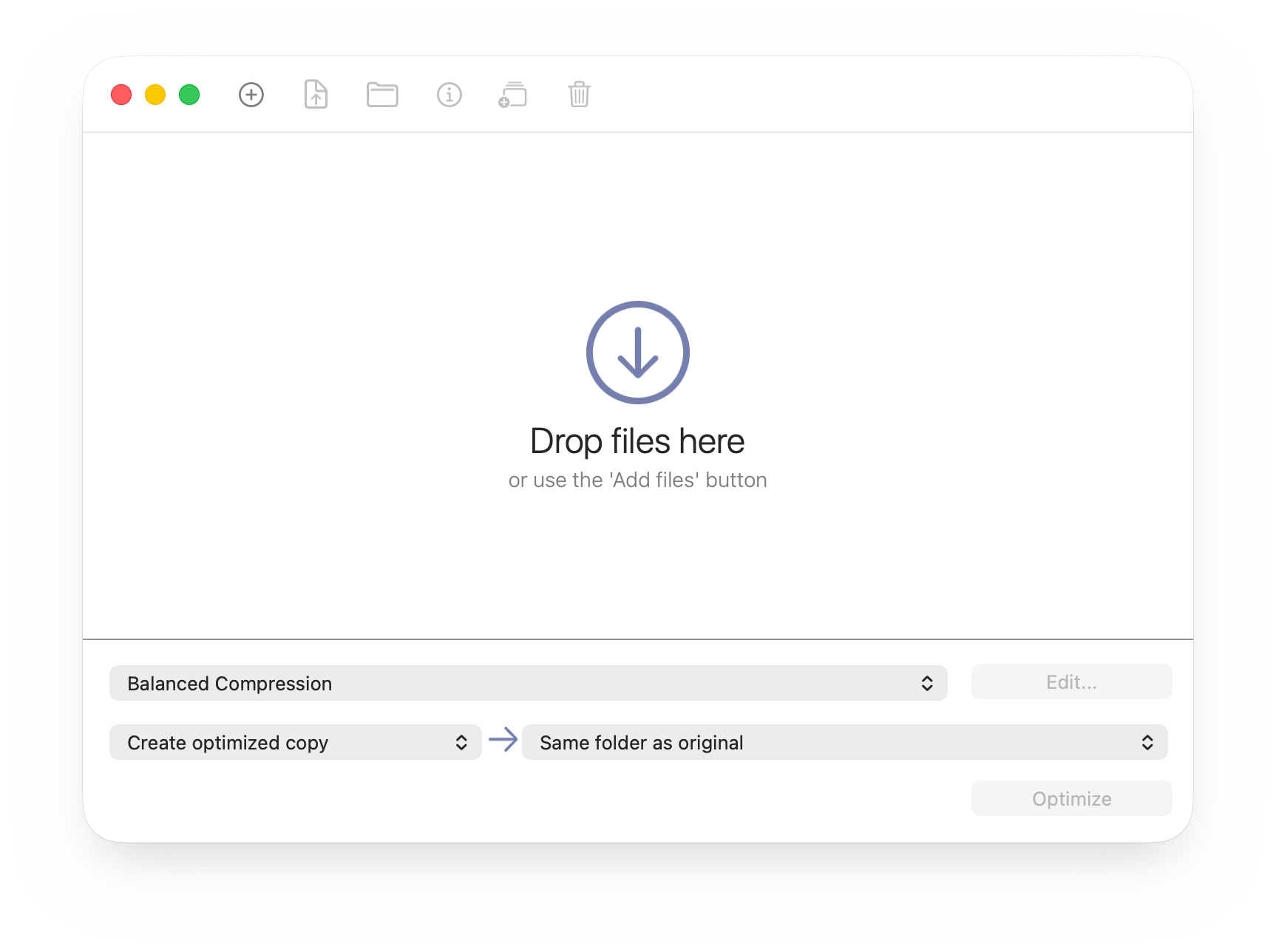
In version 11, we’ve made subtle but important UI refinements to give the application a simpler, fresher look and make it even easier to use, while keeping the familiar experience you expect from version 10. On first impressions it may look very similar to version 10, and hopefully it will feel like everything is still where you expect it to be, but just a little easier and clearer to work with.
For example, we’ve removed the labels from the main application dropdowns and tweaked built-in profile names to compensate (e.g., the profile name ‘Balanced’ is now ‘Balanced Compression’). This change reduces the amount of text you need to read when verifying your compression settings.
The command bar has been updated to include new options for opening a selected file or folder, as well as the View details button.
Version 11
Version 10 for comparison:
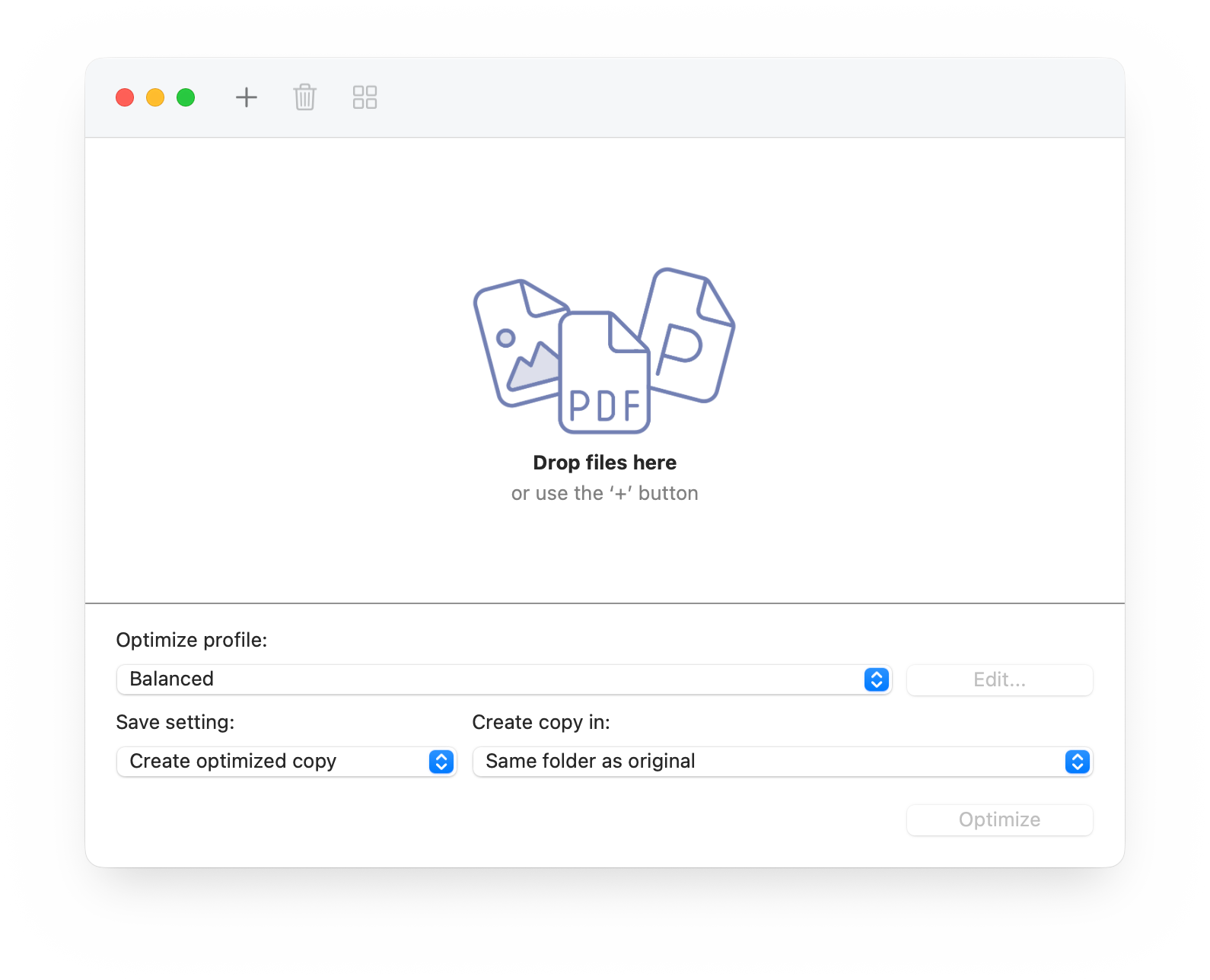
You might have to try really hard to spot some of the other changes, but trust us, they're there, and they should quietly make using NXPowerLite even better. We're really keen to hear what you think of the UI tweaks—good or bad—so please drop your feedback in the comments!
Permissions and Network Fixes
We've resolved a couple of issues encountered when working with files stored on the cloud or a network. While a workaround involved copying files locally, this forced a frustrating change to the user's workflow
Enhanced support for Dataless Cloud Files
Cloud storage clients, such as iCloud Drive and Google Drive, often use 'dataless' files in Finder, which trigger a download only when interacted with. Previous versions of NXPowerLite Desktop required users to explicitly mark these files as “Download” or copy them to a local folder before compression. Version 11 eliminates this requirement: you can now simply drag or add these cloud files to NXPowerLite, and they will be compressed like any local file. This significantly streamlines the processResolved Local Network Permission Issues
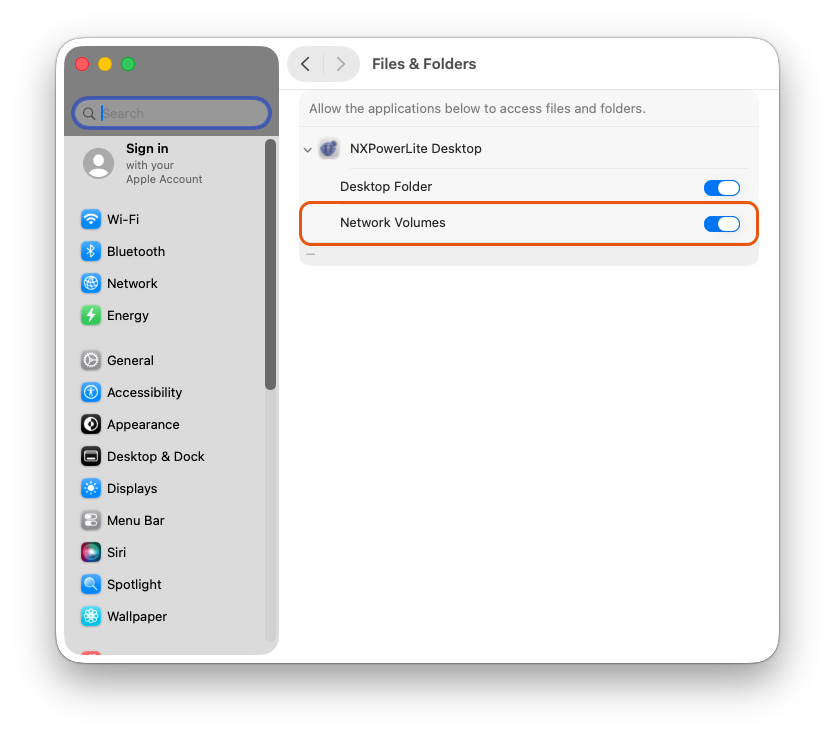
Users who regularly compressed files on local network folders relied on the “Grant access” dialog. A persistent issue was the disruptive 'disconnected drive warning' that would appear every time NXPowerLite was used, especially when traveling and no longer having access to the network drive. Version 11 addresses this by switching to the more conventional “Files and Folders” permissions, removing the unnecessary warnings.
Summary
We are thrilled to introduce "View details," a fantastic and significant new feature in NXPowerLite Desktop 11! While we always aim to improve our compression magic and refine the user interface, this new addition goes far beyond our usual improvements.
Adding View details helps us achieve a major long-term goal: giving our users all the info and advice they need to tackle those tricky times when compression just isn't enough to get the file size down. We're really looking forward to seeing how much this new feature helps everyone out!