What’s new in Slidewise 3.5?
We are excited to release Slidewise 3.5, designed to make your presentation cleanup faster and more reliable than ever. This update introduces a new, reassuring 'Applying changes' screen so you always know your file is in good hands. We’ve also added a powerful one-click tool to wipe out text highlights, giving you a faster path to a clean, final presentation.
Get your free 30-day trial of Slidewise if you haven't already.
Apply changes workflow
Some changes require Slidewise to briefly close and reopen your file; a necessary technical step. However, we heard that this process was disconcerting without progress updates. To provide peace of mind, we’ve introduced an 'Applying changes' dialog, confirming your file is in safe hands while we work.
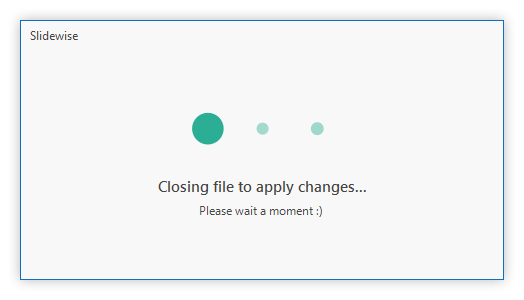
Previously, Slidewise would reset your view to the first slide after processing changes that required the file to be closed. Now it restores your location automatically, so you can pick up where you left off, creating a smoother experience.
Remove text highlights
The Colors tool groups all highlighted text in your presentation by color. Because highlighting is frequently used for draft markup, you may want a quick way to clear it once your edits are finalized. With Slidewise 3.5, you can now wipe out all text highlighting with just one click.
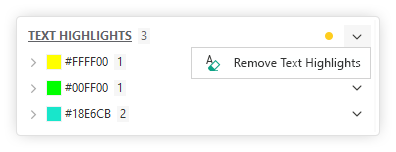
You can also remove just a specific highlighting color if you need to.
Theme palettes
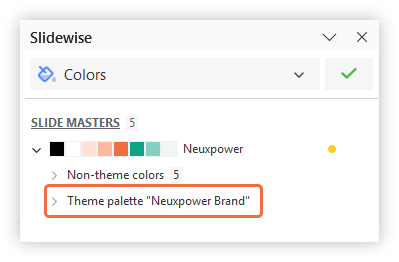
For people managing several custom color palettes, Slidewise now shows the palette name in quotation marks on the Theme palette node. See “Neuxpower Brand” below:
Dark mode
Some of our custom icons were not working correctly in dark mode, so the icons almost disappeared, making our Ribbon look a bit odd. These have been fixed now so the icons all appear correctly in Light or Dark mode.
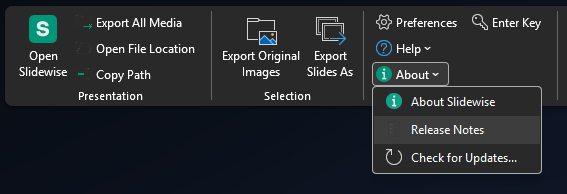
Slidewise ribbon with missing dark mode icons
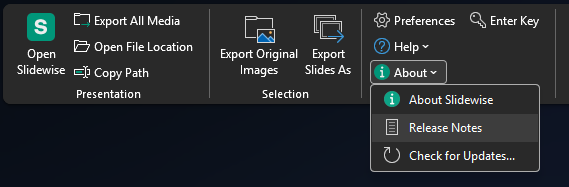
Slidewise 3.5 with fixed icons
SVG/PNG update
In May 2026, Microsoft released an update to Microsoft 365 that means SVGs can now be added without automatically generating a hidden PNG copy for backward compatibility. We have updated the tooltips in 3.5 to make note of this. If you still see embedded PNGs paired with an SVG in Slidewise, you should just be able to use the Save As option, and PowerPoint will remove them automatically.
Stability
We continue to refine the Slidewise code, to ensure it can handle any PowerPoint file, no matter what it contains. In this latest update, the following fixes have been applied.
We fixed a crash in the Image Audit caused when it encountered locked AND unselectable elements. Although valid in the file XML, PowerPoint cannot generate these elements via its UI; they occurred in files modified with third-party tools used to lock specific content. Slidewise now skips these elements so that the audit can complete.
Fixed an error that occurred when deleting empty placeholders for files synced with OneDrive.
Previously, Slidewise assumed all placeholders had an IDX value. This led to crashes when analyzing files that had a placeholder without an IDX value. We have updated the logic to assume missing values are 0, matching the specification.This allows these files to be analyzed and edited with Slidewise now.
In version 3 we introduced a warning dialog for read-only presentations. However, the detection logic was overly broad and incorrectly flagged presentations containing embedded fonts with restricted permissions. This prevented you from making changes to these accessible files with Slidewise. We have now resolved this issue so that you can edit these files without disruption.
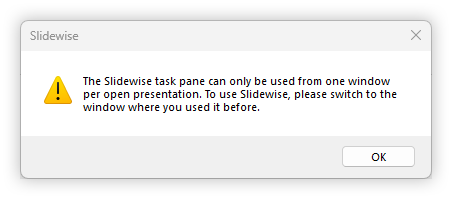
Slidewise 3.5 introduces improved handling for multiple windows. Previously, if you used PowerPoint's View > New Window option while Slidewise was active, the Inspector would update to reflect your selection in the second window. However, clicking the Inspector would cause it to revert to the selected shape in the original window. Slidewise now restricts Inspector details exclusively to the window in which it was opened. If you attempt to open Slidewise in a second window, you will see this notification.
What next?
Thanks as always for your continued support. We hope you find these new updates helpful and we look forward to sharing major enhancements with you early next year in Slidewise 4. Customer feedback shapes every update, so please do get in touch if you spot any issues or have features you’d like to see added.